Install Knoon in WhatsApp
Follow the setup steps below to connect your assistant and start using Knoon in WhatsApp.
Install Knoon External Chat in Your WhatsApp Business Via Knowledge Base
Install Knoon External Chat in Your WhatsApp Business Via Knowledge Base
To get started, you will need an existing knowledge base connected to a chat box managed by an agent.
- Go to Knoon > Knowledge > Knowledge Bases.
- Select the knowledge base.
- In Chat Boxes, click the More button on a chat box.
- Click Integrate WhatsApp, then press Continue.
- You will be redirected to Facebook Business login. Click Continue.
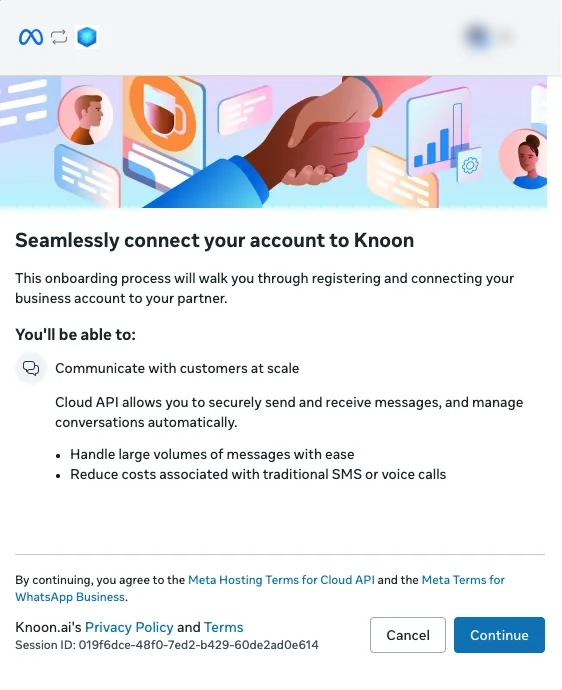
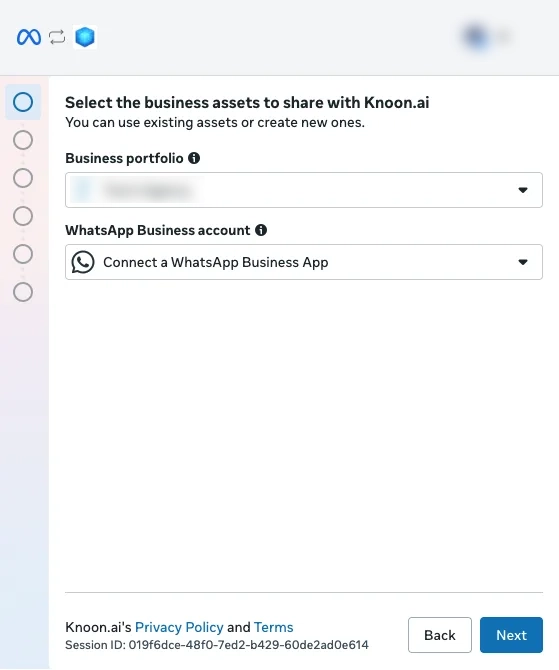
- Select a business portfolio. Under WhatsApp Business account, select Connect a WhatsApp Business App, then press Next.
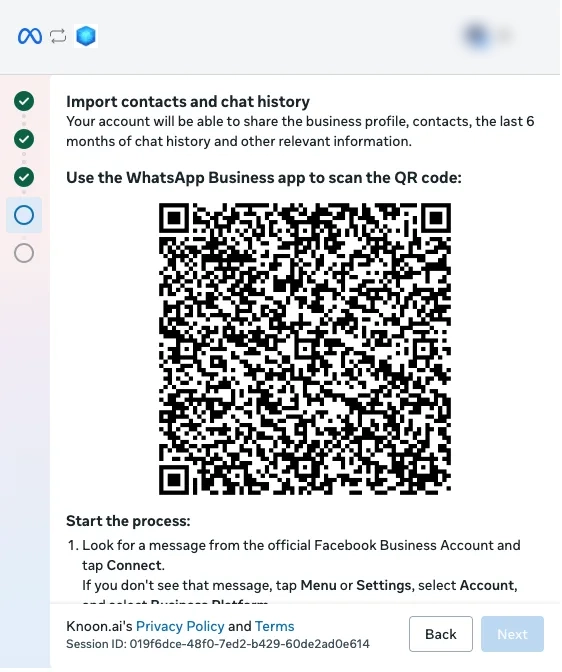
- Select your WhatsApp Business number, then press Next. A QR code for importing contacts and chat history will appear.
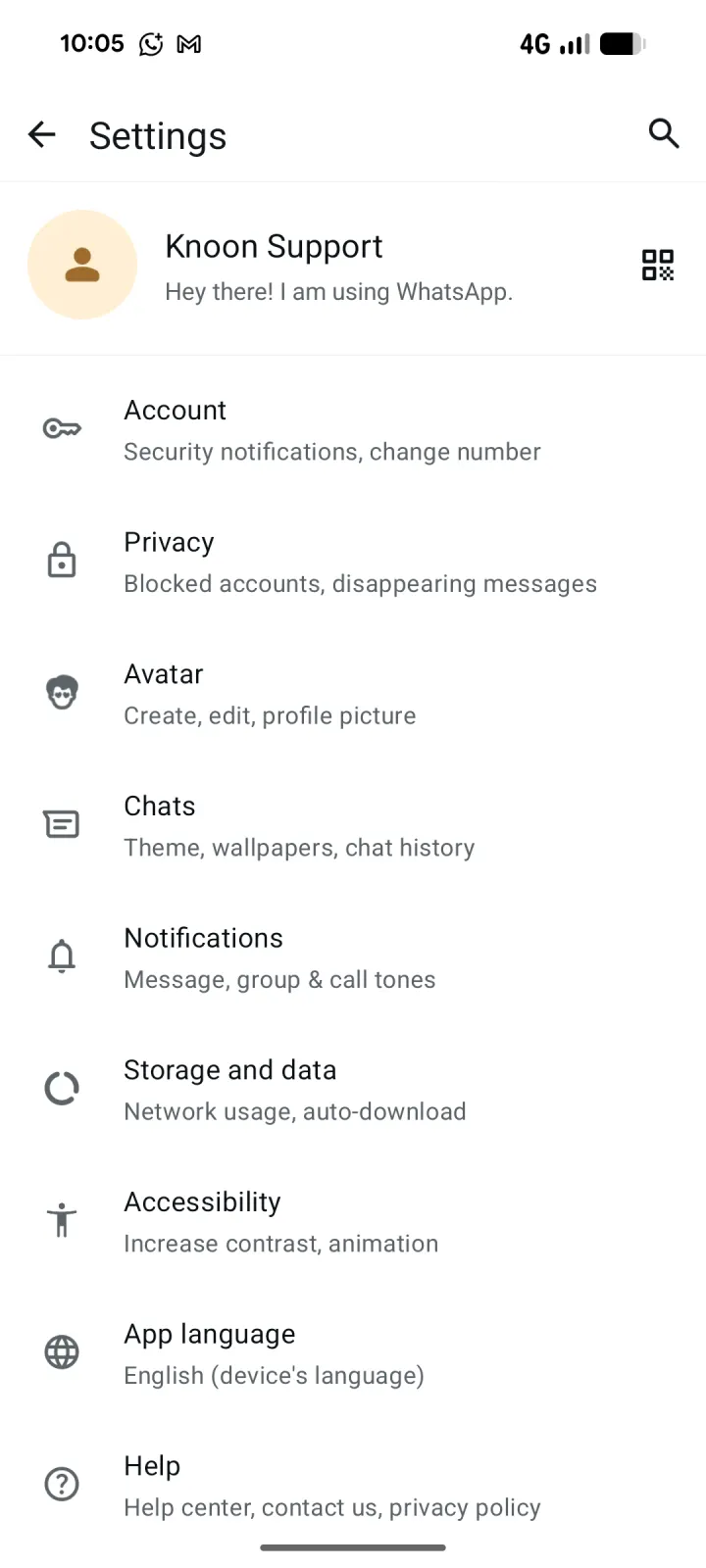
- Open the WhatsApp Business app, go to Settings, then tap the QR code icon beside your business profile.
- Select the Scan code tab. If the scanner introduction appears, tap OK.
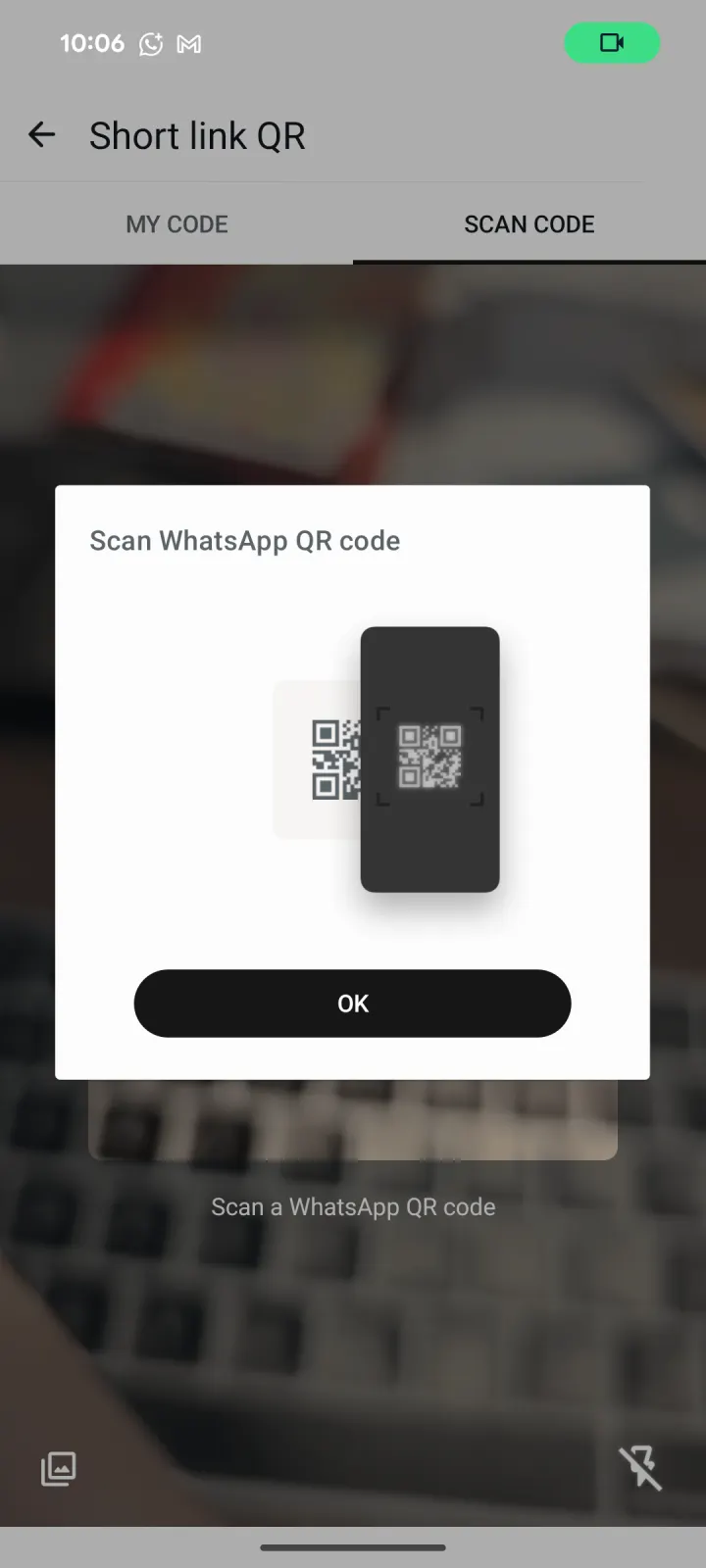
- Scan the QR code displayed in the Meta onboarding window. When asked to connect to the Business Platform, tap Continue.
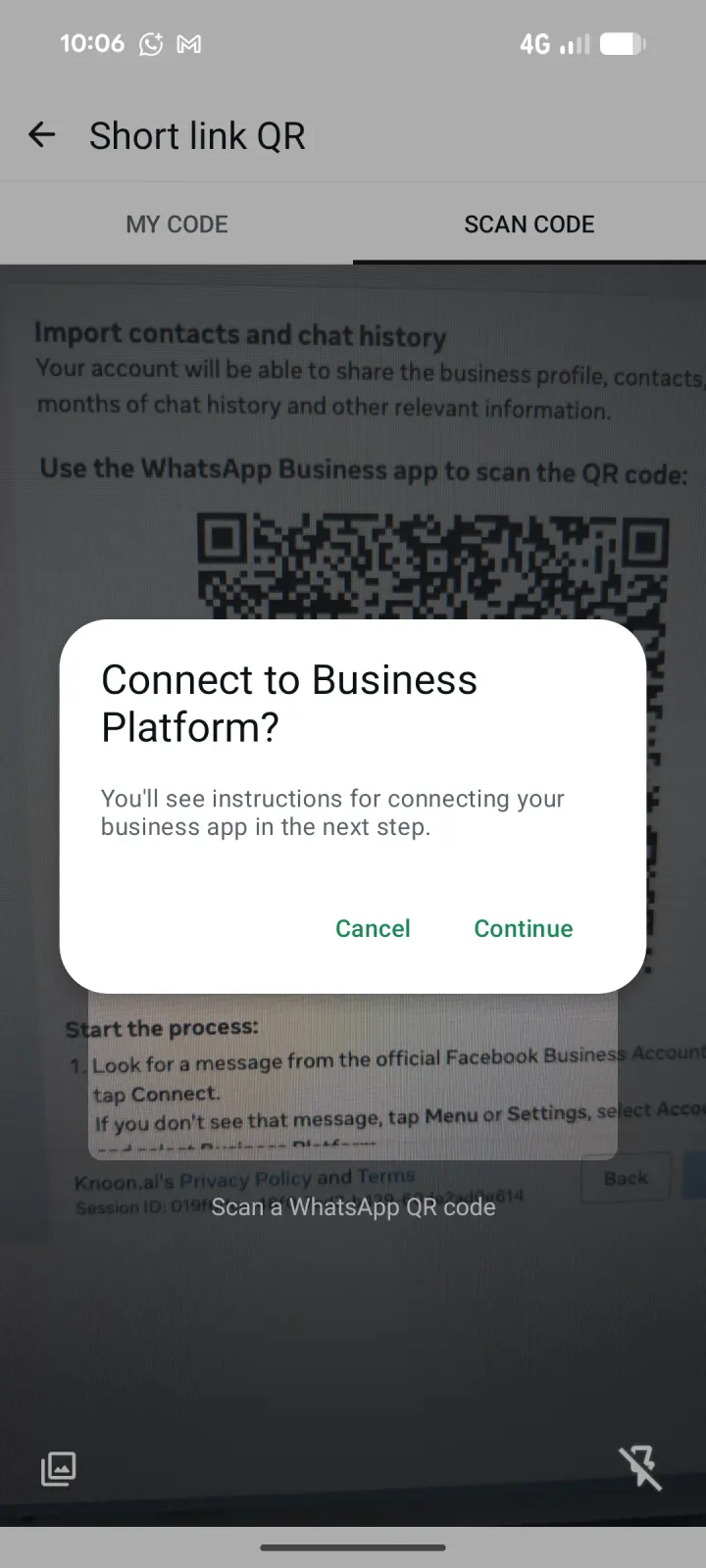
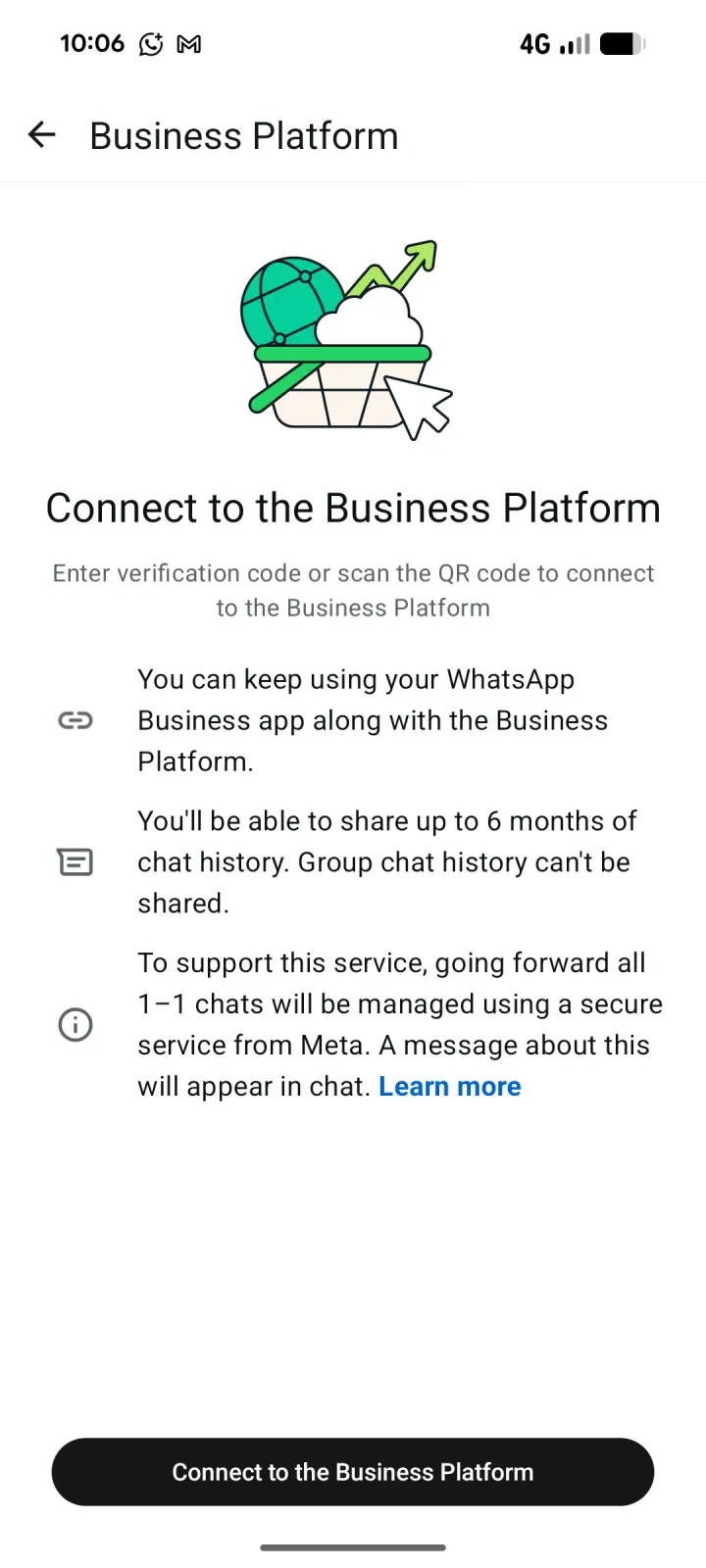
- Review the Business Platform information, then tap Connect to the Business Platform.
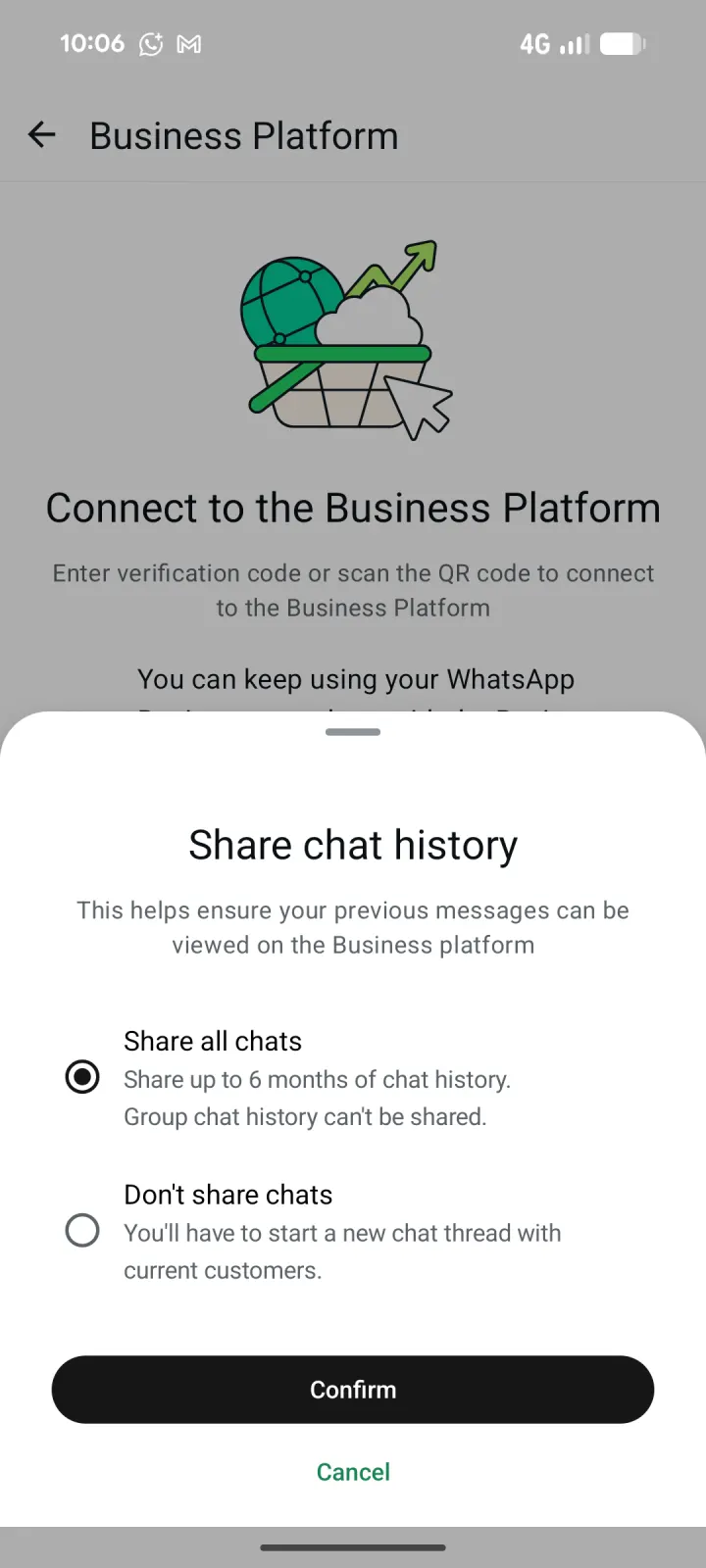
- Choose Share all chats to import up to six months of one-to-one chat history, or Don't share chats to start new chat threads. Tap Confirm.
- Wait while WhatsApp connects your account. This can take up to 45 seconds.
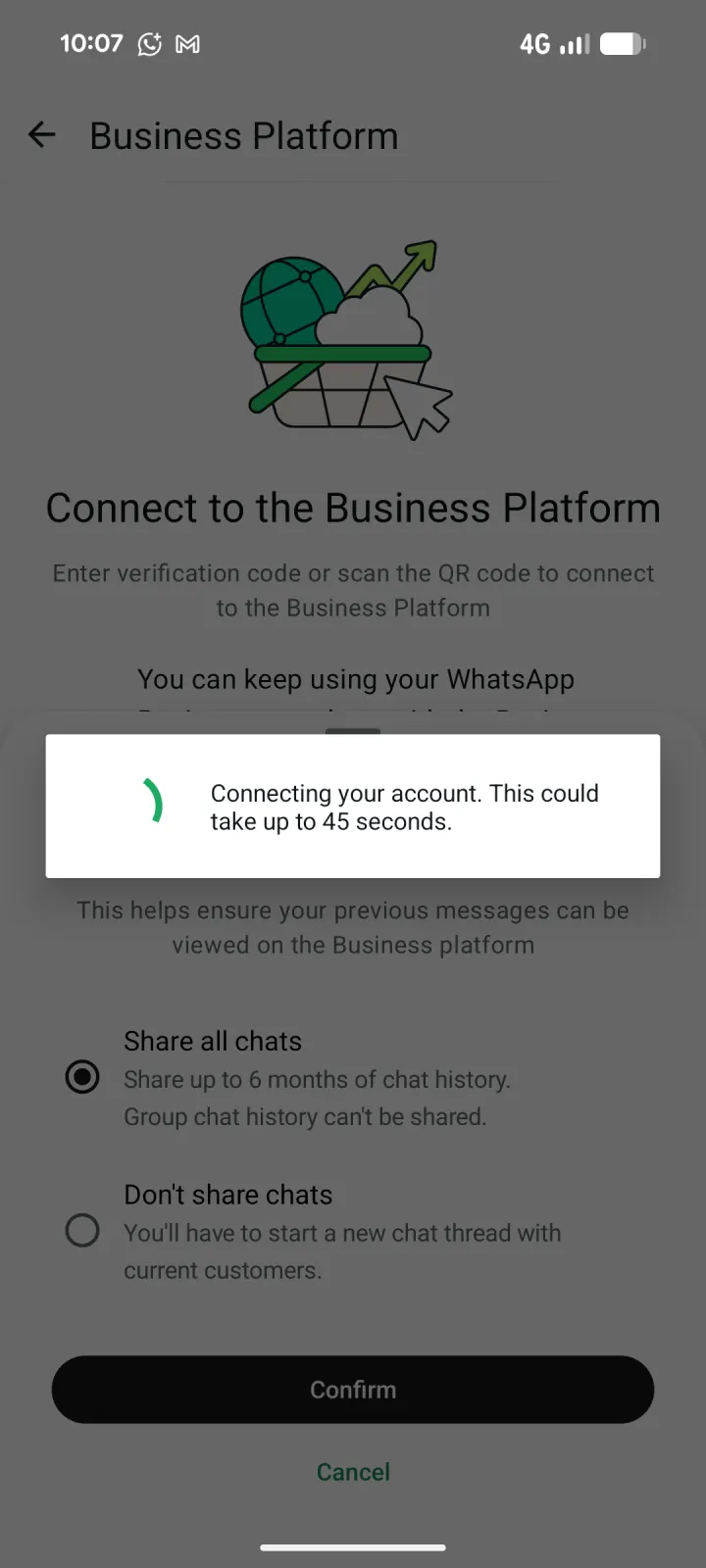
- Setup is complete.
- Your agent is now ready to chat in your WhatsApp Business.
Install Knoon External Chat in Your WhatsApp Business Via Websites
Install Knoon External Chat in Your WhatsApp Business Via Websites
To get started, you will need an existing site with a chat box managed by an agent.
- Go to Knoon > Knowledge > Websites.
- Select the website.
- Press the Websites icon > Modify.
- Click Integrate WhatsApp, then press Continue.
- You will be redirected to Facebook Business login. Click Continue.
- Select a business portfolio. Under WhatsApp Business account, select Connect a WhatsApp Business App, then press Next.
- Select your WhatsApp Business number, then press Next. A QR code for importing contacts and chat history will appear.
- Open the WhatsApp Business app, go to Settings, then tap the QR code icon beside your business profile.
- Select the Scan code tab. If the scanner introduction appears, tap OK.
- Scan the QR code displayed in the Meta onboarding window. When asked to connect to the Business Platform, tap Continue.
- Review the Business Platform information, then tap Connect to the Business Platform.
- Choose Share all chats to import up to six months of one-to-one chat history, or Don't share chats to start new chat threads. Tap Confirm.
- Wait while WhatsApp connects your account. This can take up to 45 seconds.
- Setup is complete.
- Your agent is now ready to chat in your WhatsApp Business.